Simpliguides › Email › Gmail
How to schedule an email to send later in Gmail
Gmail can hold a message you've finished writing and send it automatically at a time you pick, rather than the moment you click send. Useful for finishing work late and not wanting a timestamp that says so, or for lining up a message to land right when someone's likely to read it. This guide covers the desktop browser version.
What you'll need: A Gmail account. A desktop or laptop browser — Chrome, Firefox, Safari, or Edge.
Open Gmail in your browser
Go to mail.google.com and sign in if you aren't already.
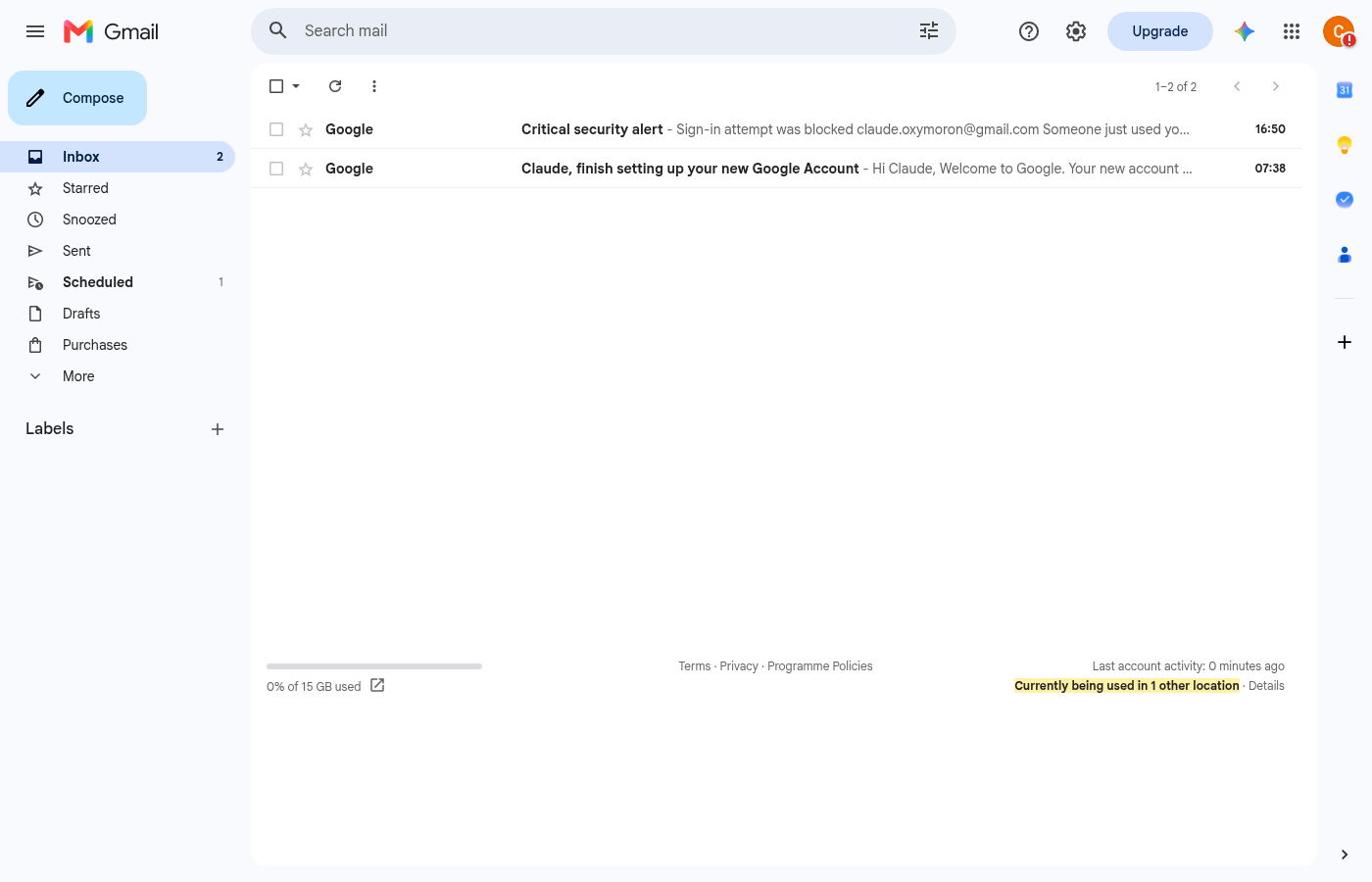
Click Compose
Click Compose in the top-left corner to open a new message window.
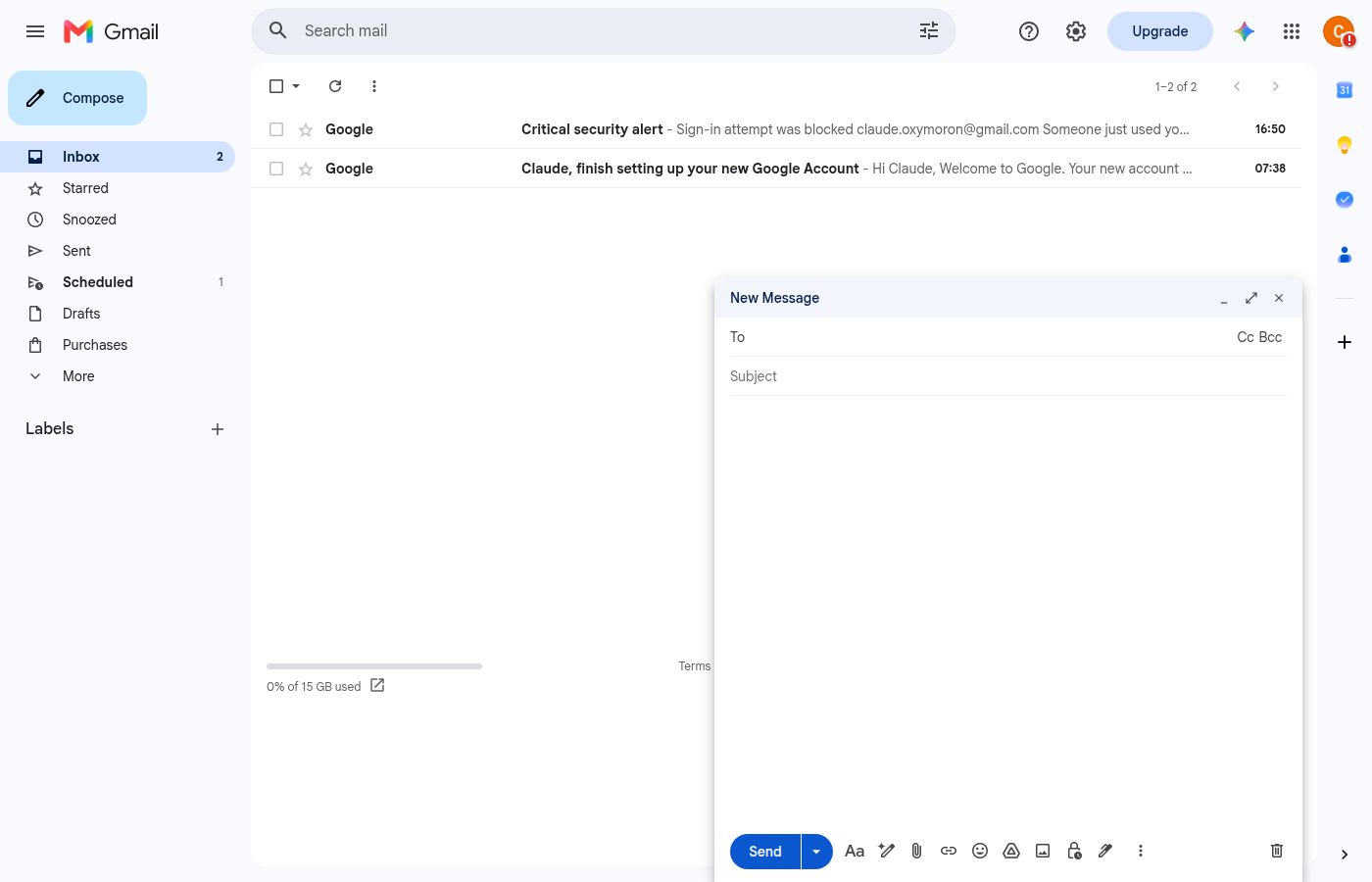
Write your email
Fill in the recipient, subject, and message as normal. Scheduling doesn't change anything about how you write the email itself.
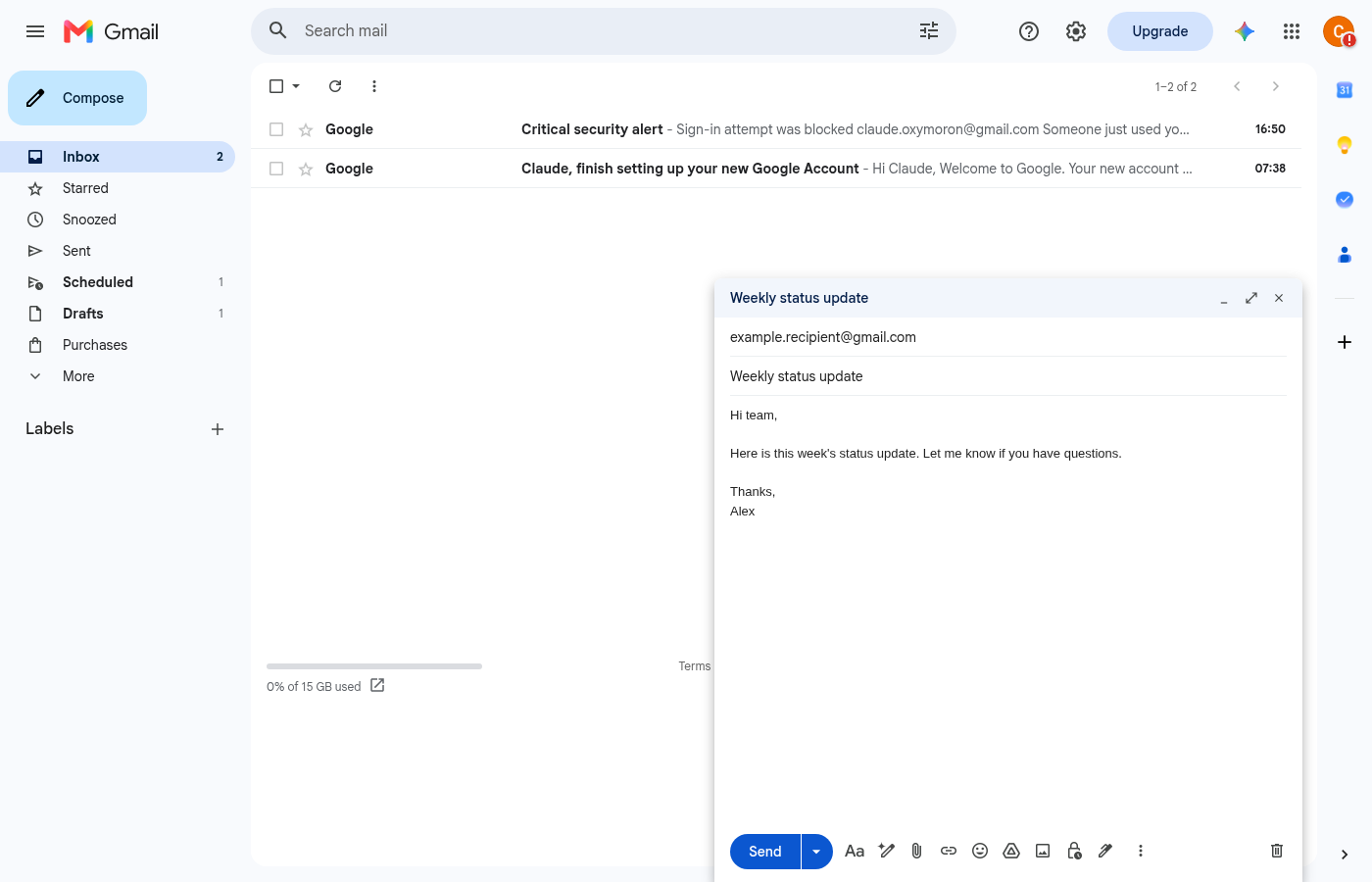
Open the send options
Click the small arrow next to the Send button, at the bottom left of the compose window.
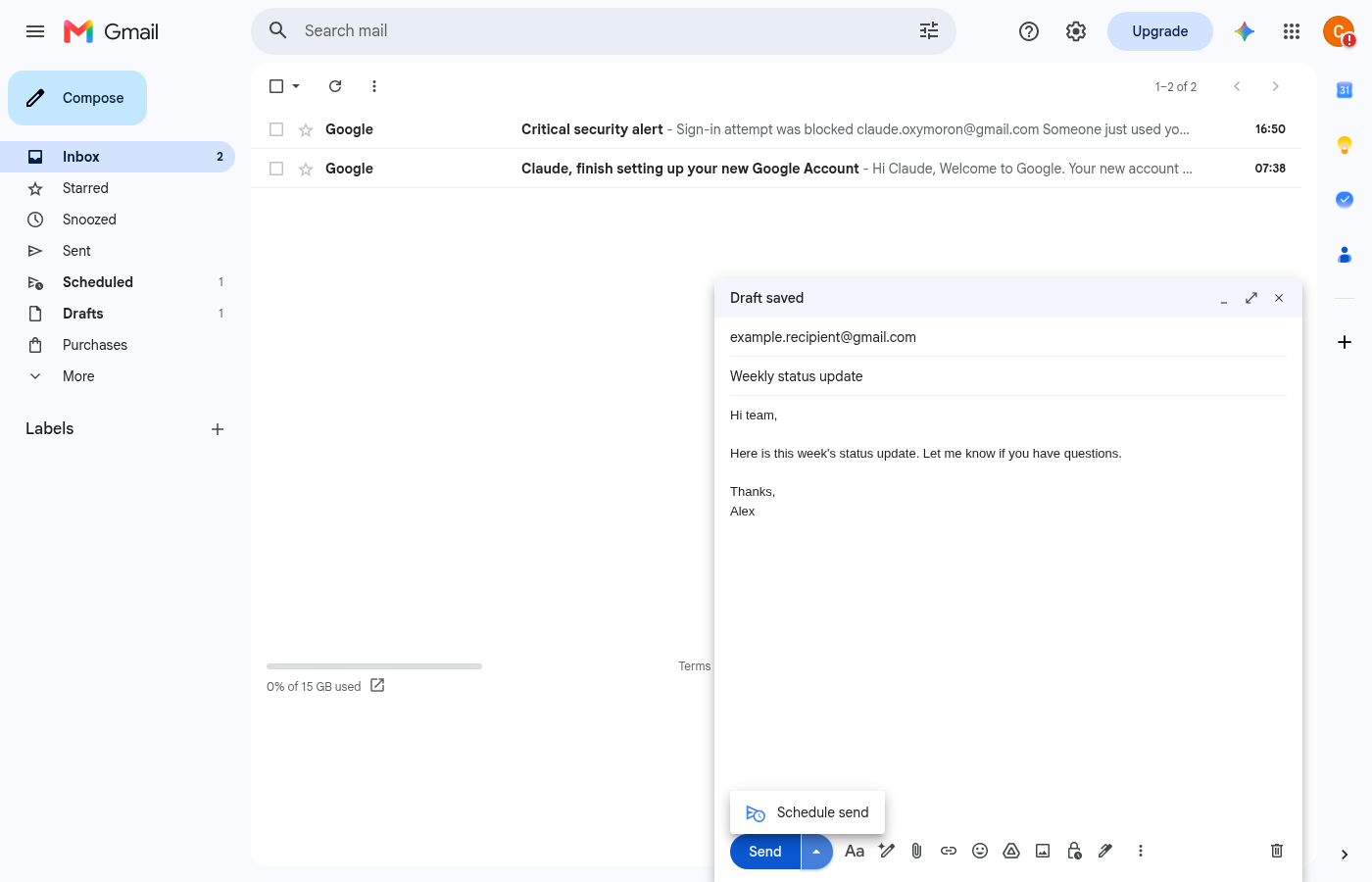
Click Schedule send
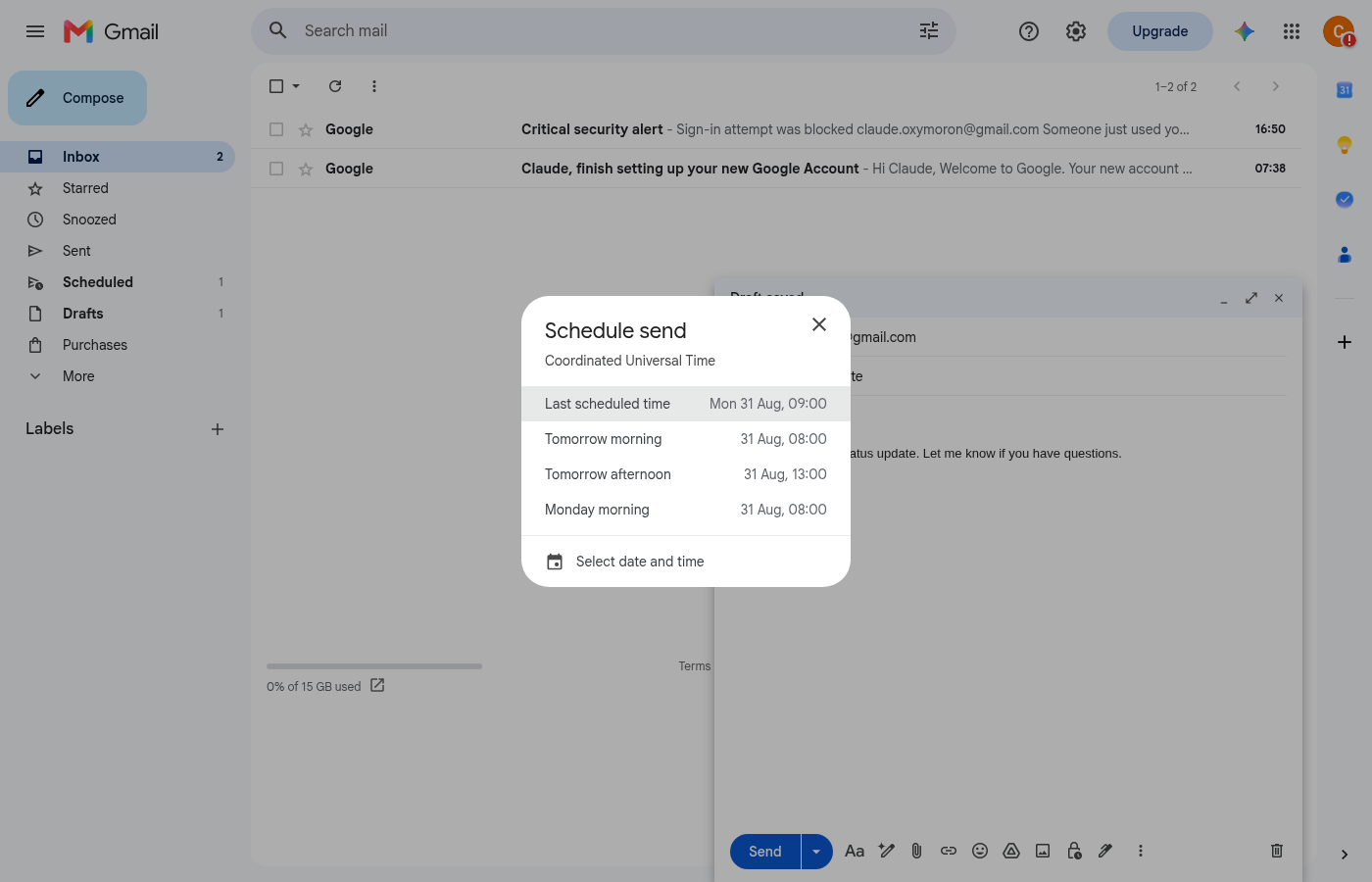
A panel appears with a handful of suggested times — Tomorrow morning, Tomorrow afternoon, and so on — plus a Select date and time option at the bottom.
Pick your own date and time
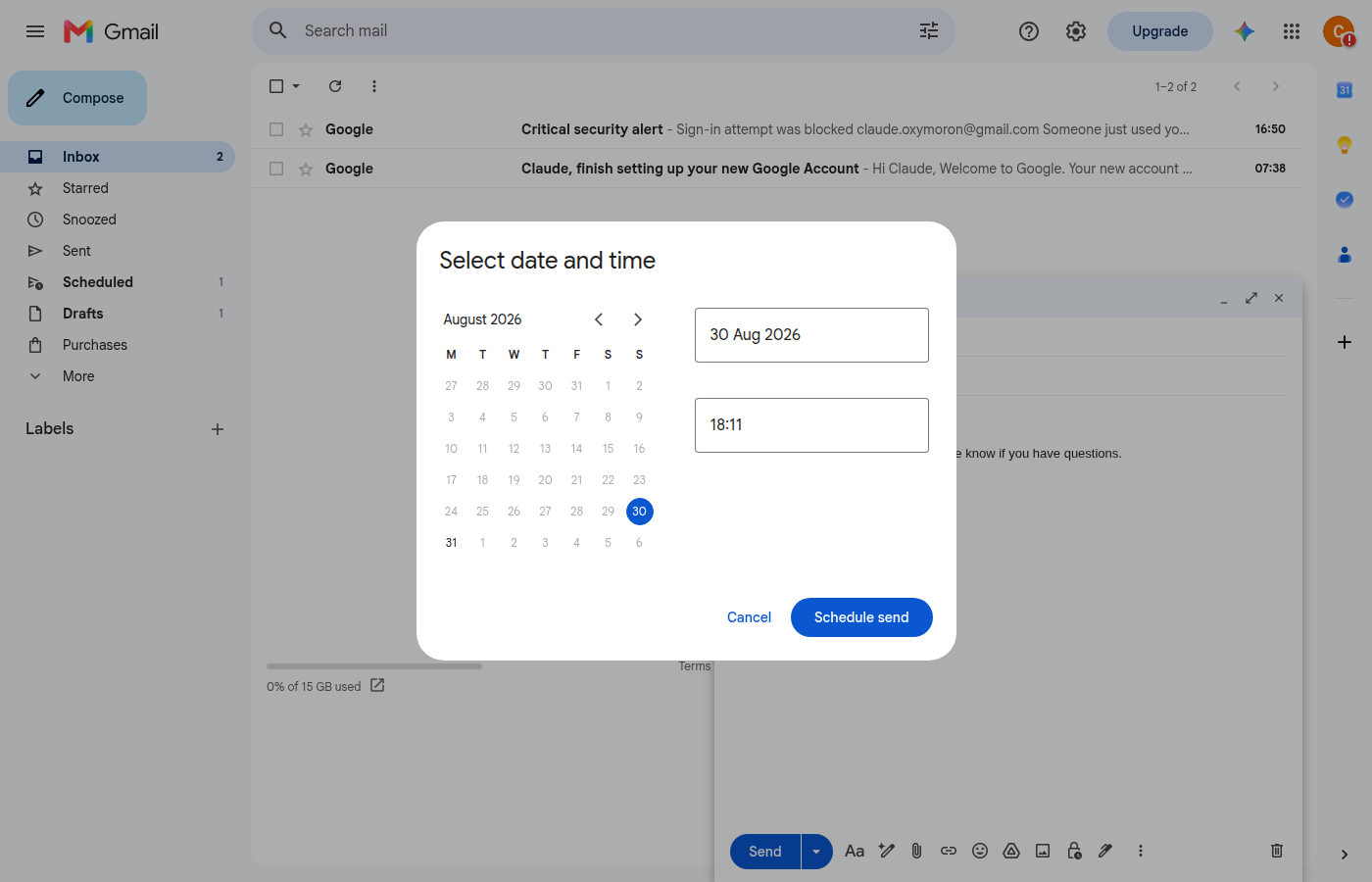
Click Select date and time if none of the suggested times suit. A calendar and a time field appear so you can set exactly when the email should go.
Confirm the schedule
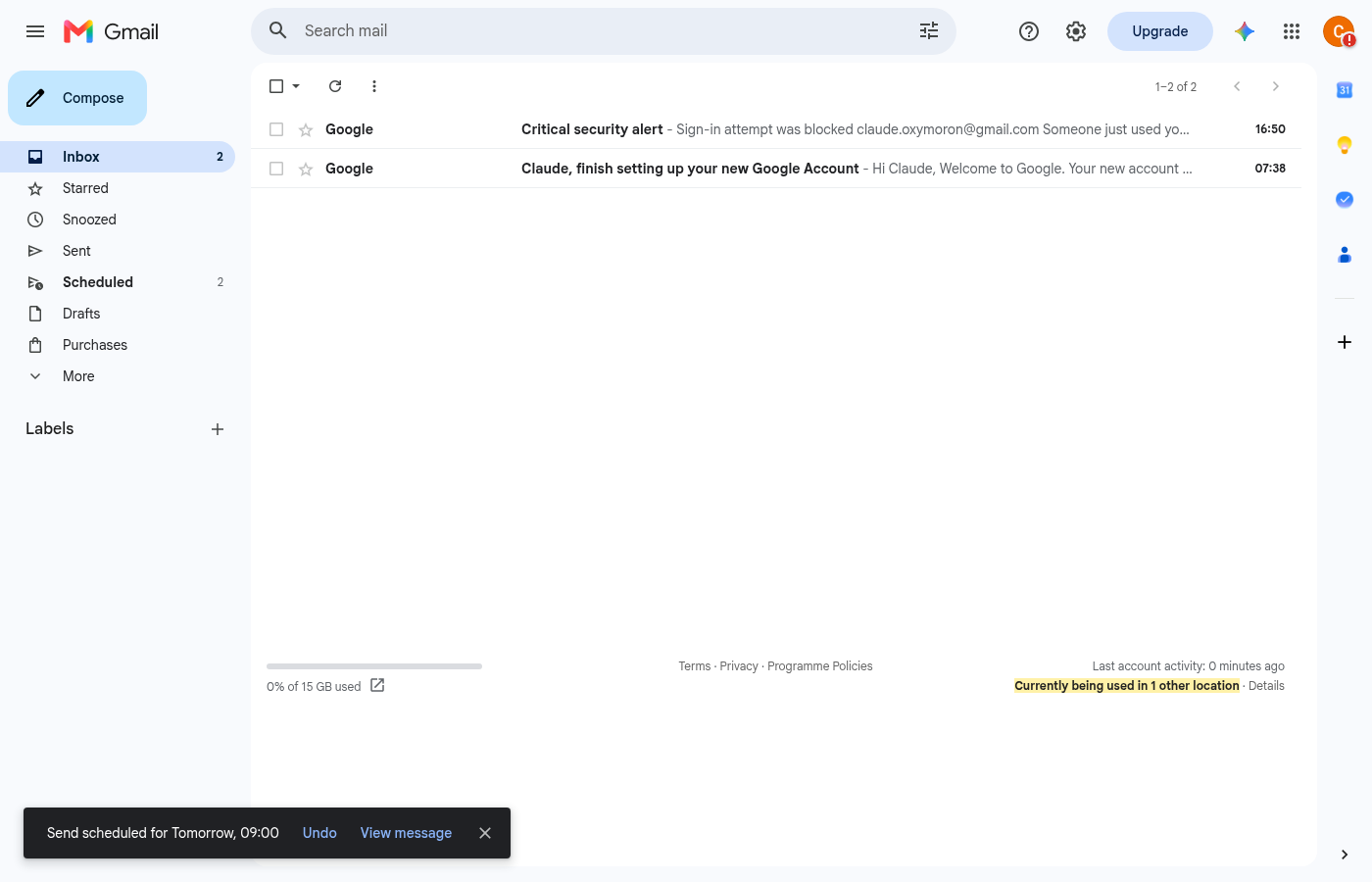
Choose a date, set the time, and click Schedule send. Gmail confirms with a message at the bottom of the screen showing when it'll go — with an Undo option if you change your mind straight away.
Check the Scheduled folder
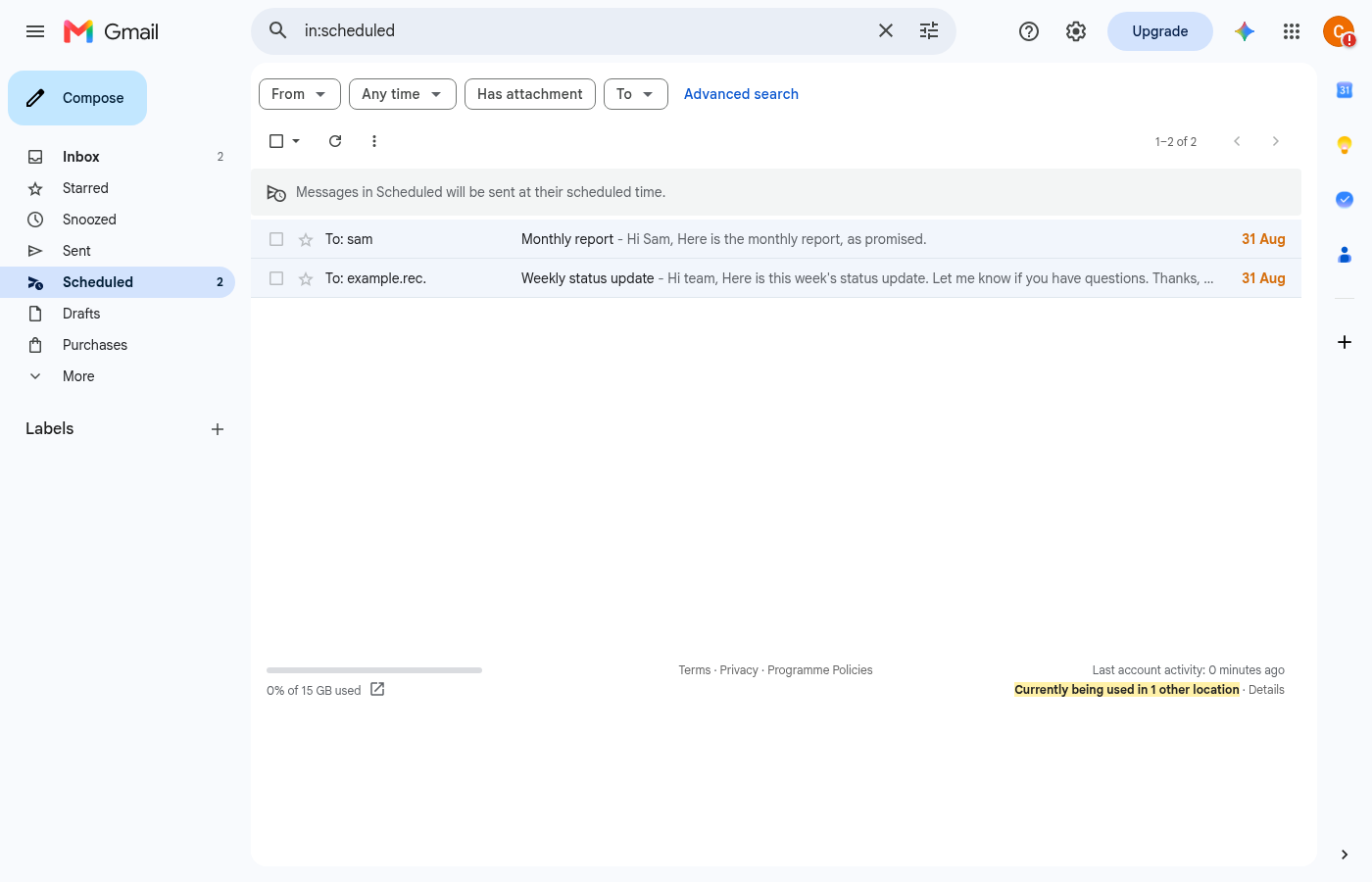
Click Scheduled in the left-hand sidebar at any point to see everything waiting to send, along with the date each one is due out.
Variations
If one of the options in the Schedule send panel already matches what you need — Tomorrow morning, for instance — click it directly. There's no need to open the date and time picker at all.
Open the Scheduled folder, open the email, and click Cancel send. Gmail moves it back into Drafts, unsent, where you can edit it and schedule it again from scratch.
Start a new message as usual, then tap the three-dot menu in the top-right corner of the compose screen and tap Schedule send. The same suggested times and custom picker appear as on desktop.
Troubleshooting
Yes. Once an email is scheduled, Gmail stores it on Google's servers rather than on your device, so it sends at the scheduled time whether or not you're signed in at that moment.
Click Scheduled in the left-hand sidebar — it sits below Sent. If you don't see it listed there, click More further down the sidebar to expand the full folder list.
There's no direct way to edit a scheduled time. Open the email from the Scheduled folder, click Cancel send to move it back to Drafts, then schedule it again with the new time.
Need a calculator rather than a guide? Try Simplicalcs →